Features
    Reference to Video
    Image to Video
    Text to Video
    AI Sound Effect Generator
    AI Image Generator
    Vidu Q3
    Vidu Claw
    Templates
    Pricing
    Vidu CPP
    API Platform
    Resources
    Help Center
    Tutorial
    Blog
    Language
    Try Vidu
    AI Sound Effect Generator Hero Background
    AI Sound Effect Generator Sound Icon

    AI Sound Effect Generator

    Turn text into high-quality audio, including sound effects, ambient sounds, and instrumental tracks.

    AI Sound Showcase

    Discover the power of AI-generated sound—ambient effects, background music, and perfectly timed audio layers—all created by Vidu.

    Ambient & Sound Effects

    Train Horn & Tracks
    Train Horn & Tracks

    Prompt

    A train horn, train wheels rubbing against the tracks

    00:10

    Glass Shatter & Beast
    Glass Shatter & Beast

    Prompt

    Violent impact sound, glass shattering, beast growling

    00:10
    Knife Chopping
    Knife Chopping

    Prompt

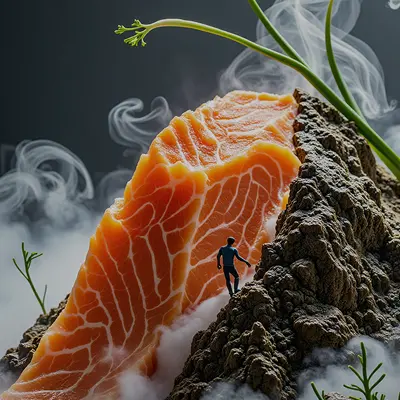
    Knife chopping on a cutting board

    00:10

    Waves & Seagulls
    Waves & Seagulls

    Prompt

    Waves on the shore, seagulls calling, sea breeze

    00:10

    Background Music

    Latin Jazz
    Latin Jazz

    Prompt

    Upbeat retro Latin jazz with guitar, percussion, saxophone, and piano — great for dance parties or sunny street scenes.

    00:10

    Spring Forest Flute
    Spring Forest Flute

    Prompt

    A gentle, pure flute melody with a light, flowing rhythm, evoking a sense of nature and fantasy — perfect for a springtime forest scene.

    00:10

    Timed Audio Layers

    Forest Fire Scene
    Forest Fire Scene

    Prompt

    {Roaring fire & <0.00,10.00>} {Trees falling & <1.00,4.00>} {Animals in panic & <2.00,5.00>} {Water bomber plane & <4.00,6.00>} {Ember rain & <3.00,10.00>} "start_second": 0, "total_seconds": 10.0

    Office Sounds
    Office Sounds

    Prompt

    {Typing on a keyboard & <0.00,8.00>} {Printer noise & <2.00,3.00>} {Coffee machine sound & <4.50,5.50>} "start_second": 0, "total_seconds": 8.0

    Night Sounds
    Night Sounds

    Prompt

    {Owl hoot & <2.50,3.50>} {Cricket chirping & <0.00,8.00>} "start_second": 0, "total_seconds": 8.0

    Why Creators Love Vidu's AI Sound Effects

    Vidu makes it easy to create high-quality, precisely timed, and emotionally rich sound effects—perfect for videos, games, and creative projects.
    Precise Sound Timing Control

    Precise Sound Timing Control

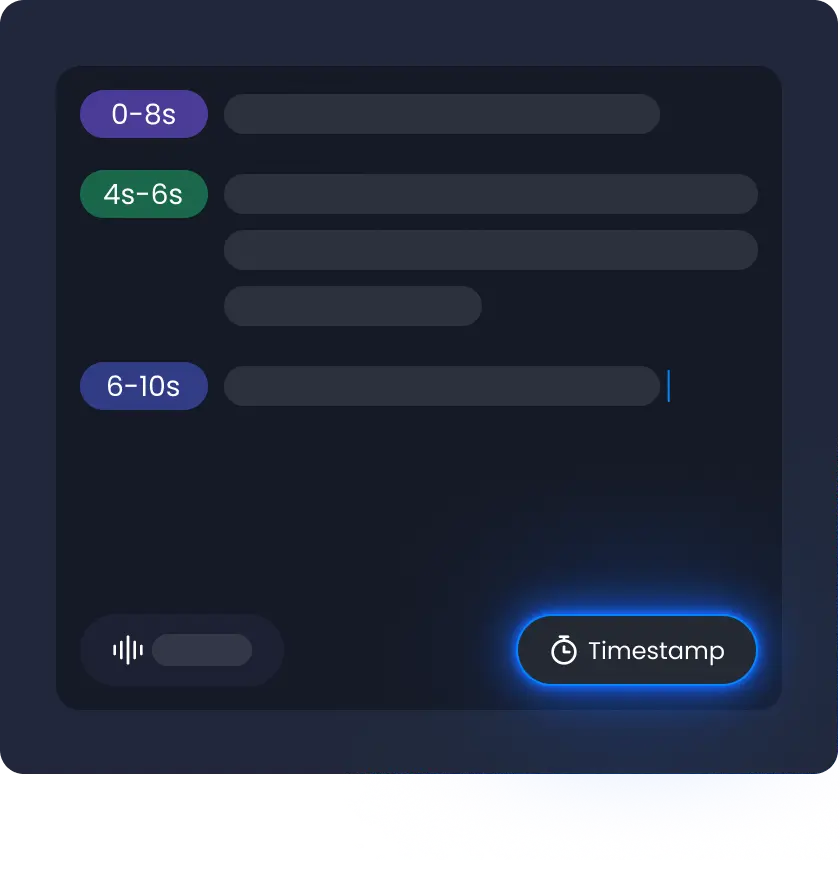
    Generate sound effects that start at any specific time point within a 10-second window. Vidu offers fine-grained timing control, enabling creators to sync audio with visuals with precision.

    Flexible Layering & Combination

    Flexible Layering & Combination

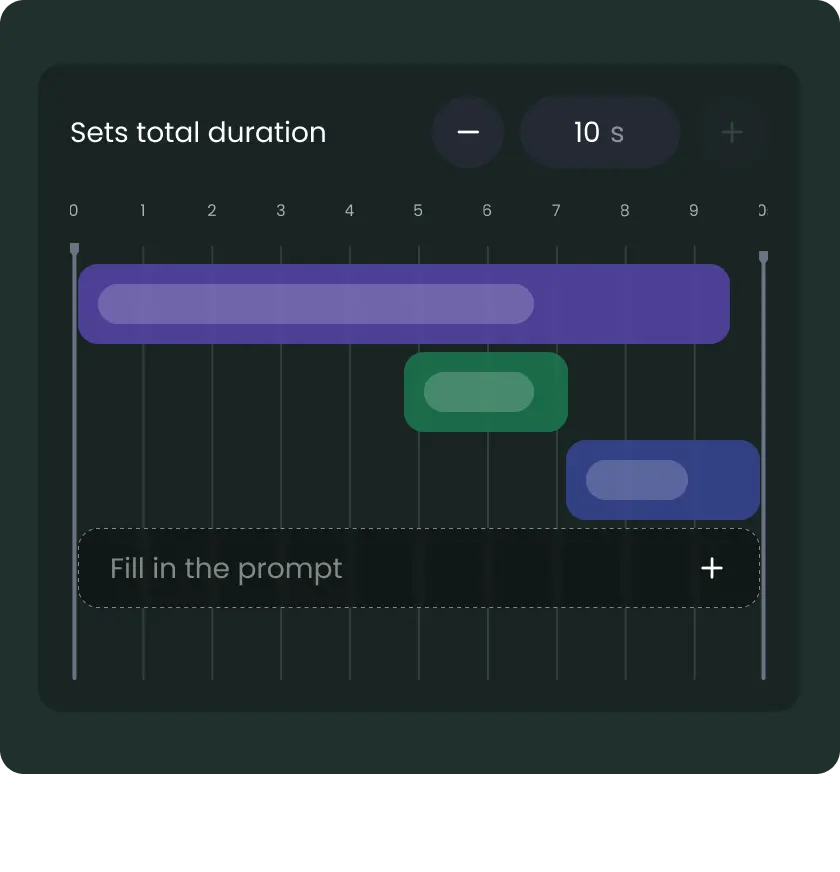
    Combine multiple audio segments into one seamless output. Vidu supports stacking and overlapping sound layers, making it easy to build complex and immersive soundscapes.

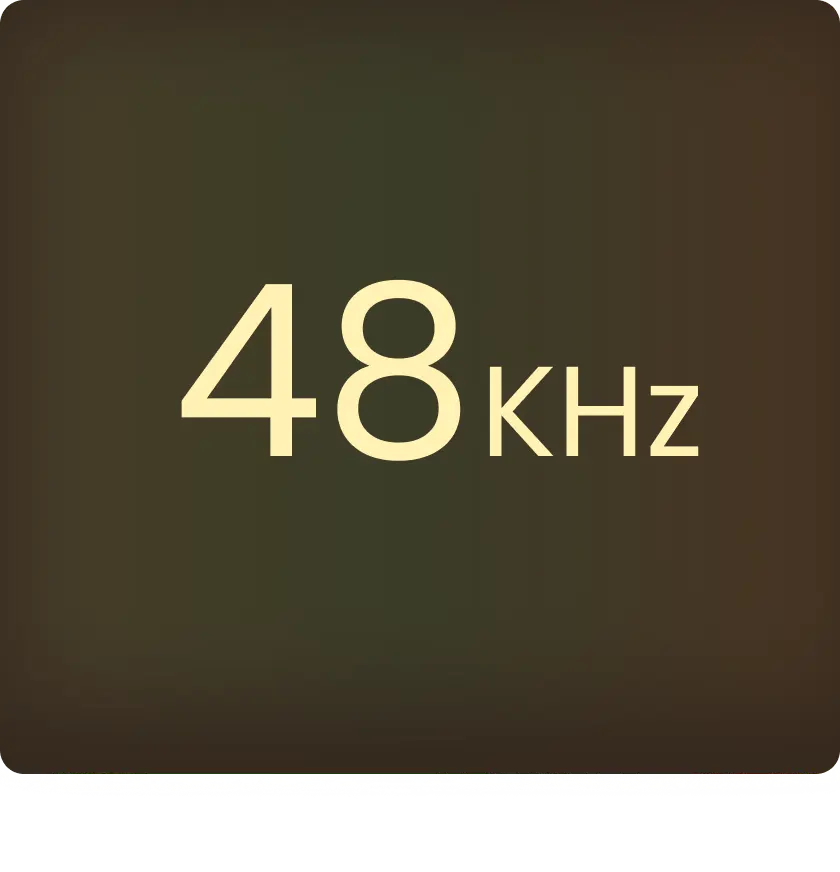
    48 KHz High-Fidelity Audio Quality

    48 KHz High-Fidelity Audio Quality

    While most tools are limited to 16 KHz or 32 KHz, Vidu delivers studio-quality 48 KHz audio, setting a new benchmark for fidelity to AI-generated sound effects.

    Detailed and Immersive Sound Quality

    Detailed and Immersive Sound Quality

    Vidu's generated audio offers enhanced depth, seamless flow, and better emotional ambiance, making it ideal for creating dynamic and realistic sound environments.

    How to Make Sound Effects with AI
    Enter Prompt & Set Timing

    Enter Prompt & Set Timing

    Open the 'AI Sound Effects' tool, enter your prompt (e.g. 'wind, footsteps'), and adjust timestamps to control when each sound plays.

    1
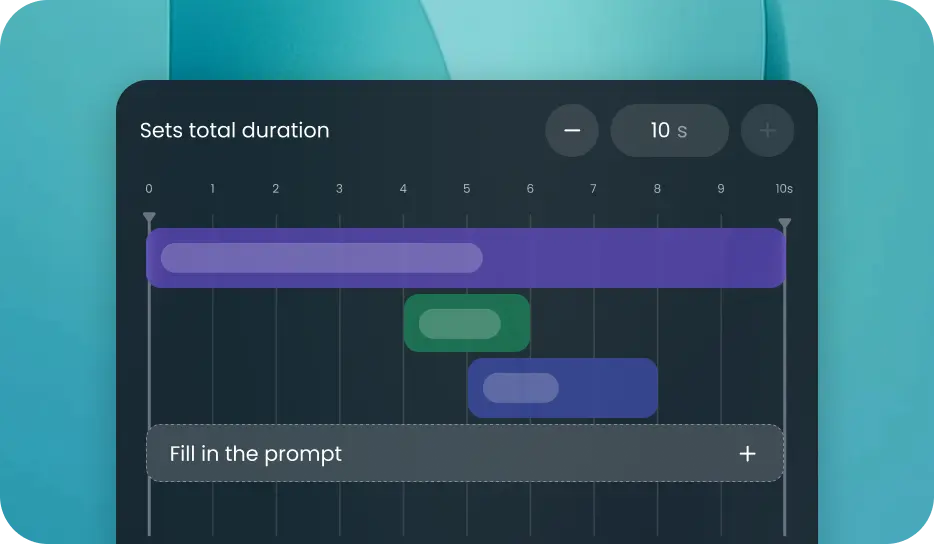
    Set Duration & Add Layers

    Set Duration & Add Layers

    Choose a total duration (1–10 seconds) and make sure it covers all your sounds. Add more timestamps and layer sounds as needed.

    2
    Generate & Download

    Generate & Download

    Click Create to generate your audio. Once ready, download or share your custom AI-generated sound effect.

    3
    Generate & Download

    Generate & Download

    Click Create to generate your audio. Once ready, download or share your custom AI-generated sound effect.

    3
    Enter Prompt & Set Timing

    Enter Prompt & Set Timing

    Open the 'AI Sound Effects' tool, enter your prompt (e.g. 'wind, footsteps'), and adjust timestamps to control when each sound plays.

    1
    Set Duration & Add Layers

    Set Duration & Add Layers

    Choose a total duration (1–10 seconds) and make sure it covers all your sounds. Add more timestamps and layer sounds as needed.

    2
    Generate & Download

    Generate & Download

    Click Create to generate your audio. Once ready, download or share your custom AI-generated sound effect.

    3
    Enter Prompt & Set Timing

    Enter Prompt & Set Timing

    Open the 'AI Sound Effects' tool, enter your prompt (e.g. 'wind, footsteps'), and adjust timestamps to control when each sound plays.

    1

    FAQs About AI Sound Effect Generator

    How does the Text to Sound Effects Generator work?
    Vidu AI Sound Effect Generator creates high-quality audio from text prompts, allowing you to precisely control the duration and timing of each sound. It supports multiple layers, seamlessly layering and mixing sounds based on your descriptions.
    What are some primary use cases for text-to-audio technology?
    It's ideal for creating custom sound effects, ambient audio, and instrumental tracks for movies, games, videos, podcasts, and other creative projects.
    Are AI audio effects generated by Vidu royalty-free?
    Yes, the AI-generated sound effects from Vidu are royalty-free, allowing you to use them freely without additional licensing fees.
    Can I use the generated sound effects in commercial projects?
    Absolutely, you can use Vidu's generated sound effects in commercial projects such as advertisements, films, games, and more.
    What are the best practices for creating effective prompts with the AI Sound Effect Generator?
    To get the best results, use 1 to 3 key sound elements per timestamp and avoid exceeding 5. Use 1 to 5 overlapping timestamps for optimal layering, and keep each timestamp's description under 100 characters.
    AI Sound Effect Generator CTA Background

    Vidu AI Sound Effect Generator

    What you imagine is what Vidu.

    GET STARTED
    Reference to VideoImage to VideoText to VideoAI Sound Effect GeneratorTemplatesAI Image GeneratorVidu Q3
    AI TOOLS
    AI Video GeneratorAI Animation GeneratorAI Image AnimatorAI Video Ad GeneratorAI Hug GeneratorAI Kissing GeneratorView All
    For Enterprise
    API Platform
    COMPANY
    Contact Us: support@vidu.comCreative Partner Program
    Copyright © 2026 Vidu®
    Terms of UsePrivacy Policy